
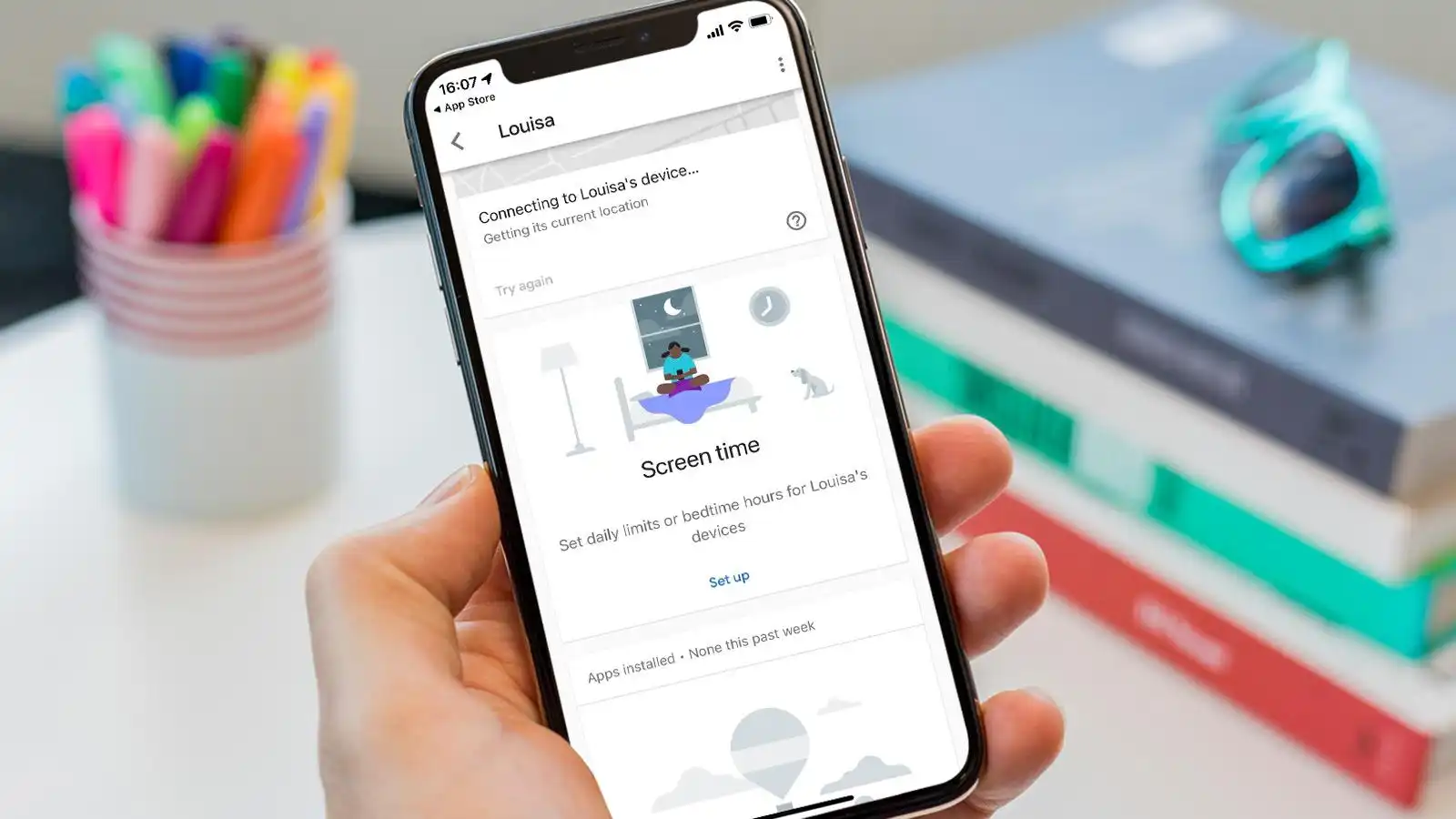
In today’s digital age, we are constantly glued to our smartphones, often spending hours on various apps and websites. This can lead to concerns about how much time we spend on our devices. Fortunately, Android offers a built-in feature that allows you to monitor your screen time. In this guide, we’ll walk you through how to check screen time on Android devices, helping you understand your usage habits and take control of your screen time.
Why Should You Check Your Screen Time?
Before diving into the “how,” it’s important to understand the “why” behind checking your screen time. Here are a few reasons why tracking your phone usage can be beneficial:
Mental Health: Excessive screen time, especially on social media, can contribute to stress, anxiety, and even depression. By monitoring your usage, you can make more mindful decisions about how and when to use your phone.
Productivity: If you feel that your phone is distracting you from work or personal goals, tracking your screen time can help identify and limit time spent on non-essential apps.
Better Time Management: Monitoring screen time enables you to allocate more time to activities that matter, such as exercise, socializing, or pursuing hobbies.
Family Monitoring: For parents, checking screen time on children’s devices helps ensure that they are not spending too much time on their phones, which can impact their overall well-being.
Now that we know why checking screen time is important, let’s explore how to do it on Android.
How to Check Screen Time on Android Using Digital Wellbeing
Android devices come with a built-in feature called Digital Wellbeing, which provides detailed insights into your screen time usage. Here’s how to check your screen time using this feature:
Step 1: Open Settings
Start by unlocking your Android phone and opening the Settings app. The settings icon usually looks like a gear.
Step 2: Navigate to Digital Wellbeing
Scroll down and look for the Digital Wellbeing & Parental Controls section. Tap on it to open the Digital Wellbeing menu.
Step 3: View Your Screen Time
Once you’re in the Digital Wellbeing section, you’ll see a summary of your phone usage, including how much time you’ve spent on your phone each day. This is often displayed in the form of a pie chart, with each app showing the percentage of time you’ve spent on it.
You can tap on the Dashboard to get more detailed insights. Here, you’ll see a list of all the apps on your device, sorted by the time you’ve spent on them. This breakdown will help you identify which apps are consuming most of your screen time.
Step 4: Set App Timers (Optional)
If you find that you’re spending too much time on specific apps, you can set timers to limit your usage. Digital Wellbeing allows you to set daily usage limits for each app. Once you’ve hit your daily limit, the app will be grayed out, reminding you to take a break.
Step 5: Check Your Screen Time Trends
In addition to viewing daily screen time, Digital Wellbeing also provides weekly reports. You can check how your screen time changes over the course of the week. This helps you track trends and make adjustments as necessary.
How to Check Screen Time on Android Using Third-Party Apps
While Digital Wellbeing is built into most Android devices, it may not offer all the features some users need. Luckily, there are several third-party apps available for monitoring screen time in more detail. Here are a few popular options:
1. ActionDash
ActionDash is a popular screen time tracker for Android users. It offers similar features to Digital Wellbeing but with added customization options. ActionDash gives you in-depth reports about your phone usage and provides weekly summaries, app-specific usage, and usage trends.
2. StayFree
StayFree is another powerful app that tracks your phone’s screen time and helps you manage app usage. The app provides beautiful charts, app usage stats, and notifications when you’ve reached your app time limits.
3. Focus Booster
Focus Booster is aimed at users who want to improve productivity. While it focuses more on tracking time spent on work-related tasks, it also allows you to monitor your screen time on non-work apps. It’s a great tool for people who need to stay focused and avoid distractions.
4. QualityTime
QualityTime offers detailed insights into your phone usage, providing daily reports and notifications about app usage. The app features an “app blocker,” which allows you to temporarily block apps to help you manage your screen time better.
How to Set Screen Time Limits on Android
Setting screen time limits is a great way to manage your usage, especially for kids or individuals who want to avoid excessive screen time. Android’s Digital Wellbeing feature makes it easy to set these limits.
1: Open Digital Wellbeing
Go to Settings, then tap on Digital Wellbeing & Parental Controls.
2: Set App Timers
Under Dashboard, tap on the hourglass icon next to an app. You can set a timer for the app, limiting how much time you can spend on it each day. Once you reach the limit, the app will be grayed out.
3: Set Bedtime Mode (Optional)
Bedtime Mode is a feature that helps you disconnect from your phone at night. When activated, it silences notifications and turns your screen to grayscale, making your phone less appealing to use. To set it up, go to Digital Wellbeing > Wind Down and configure the schedule.
4: Parental Controls (For Families)
Digital Wellbeing also allows you to set up Parental Controls. By using Google’s Family Link app, you can monitor and limit your children’s screen time. This allows you to track their usage, set screen time limits, and even remotely lock their phones.
Tips for Reducing Screen Time on Android
If you’ve checked your screen time and feel that it’s higher than you’d like, here are some tips to help reduce it:
1. Uninstall Unnecessary Apps
Take a look at the apps you use the most. Are there any that you don’t need or that are simply time-wasters? Uninstall them to reduce temptation.
2. Use the “Focus Mode” Feature
Android’s Focus Mode allows you to temporarily pause distracting apps. You can enable Focus Mode from the Digital Wellbeing section. When enabled, apps like Facebook, Instagram, or games won’t send you notifications, helping you stay focused.
3. Turn Off Notifications
Excessive notifications are one of the main reasons we spend so much time on our phones. Disable notifications for apps that aren’t urgent or essential. This will reduce distractions and help you focus on more important tasks.
4. Set Daily Goals
Setting daily screen time goals can help keep you on track. For example, you might decide to limit your screen time to two hours per day. Apps like Digital Wellbeing and ActionDash can track your progress and send reminders when you’re approaching your goal.
5. Use Your Phone for More Productive Purposes
Instead of mindlessly scrolling through social media, use your phone to learn something new. Download educational apps, audiobooks, or productivity tools that encourage growth rather than distraction.
Conclusion: How to Check Screen Time on Android
Monitoring and managing your screen time is an essential step towards improving your overall well-being, productivity, and mental health. Android’s Digital Wellbeing feature makes it easy to keep track of your usage, while third-party apps like ActionDash and StayFree offer additional insights and features.
By setting limits, using Focus Mode, and uninstalling unnecessary apps, you can take control of your phone usage and reduce the time spent on non-productive activities. Whether you’re looking to reduce screen time for personal reasons, for your family, or simply to be more mindful of your digital habits, these tips and tools can help.
