
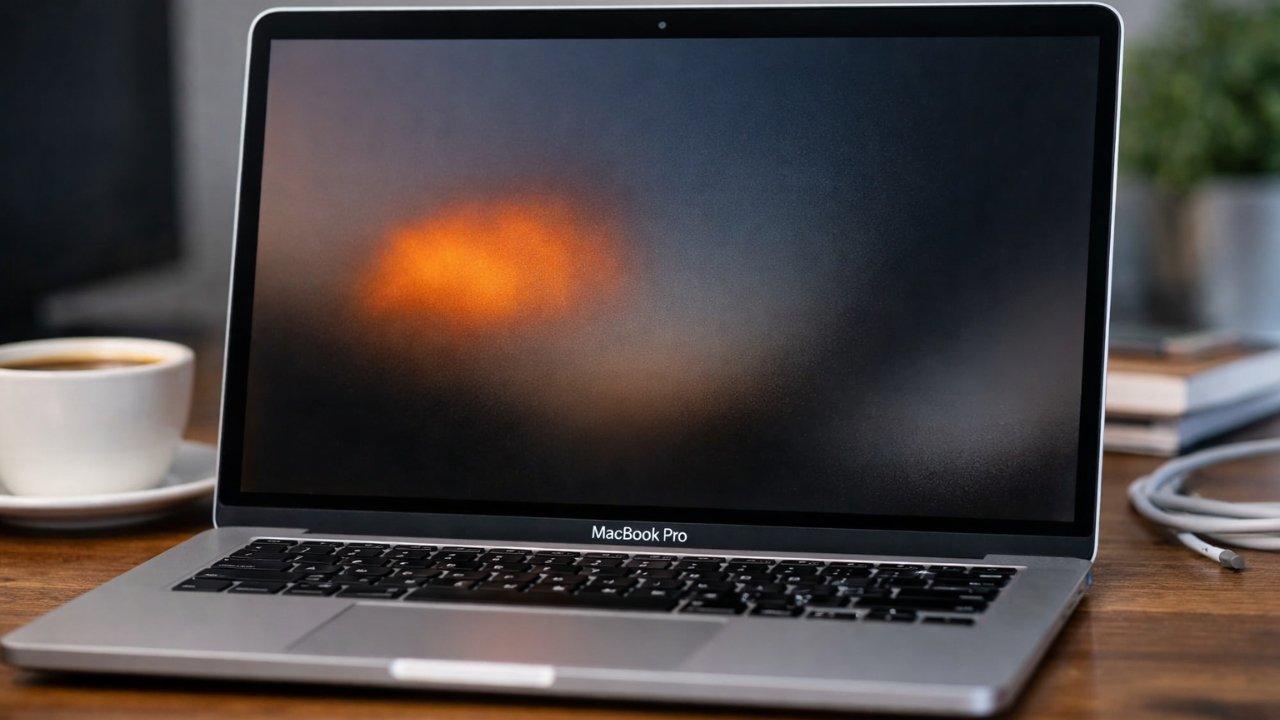
Have you ever noticed an orange smudge on your MacBook Pro screen? It’s a problem that can seem strange, but you’re not the only one facing it. Many people have experienced this issue, and it’s not always as complicated as it might seem. In this article, we’ll explain what could be causing the orange smudge and give you easy solutions on how to fix it. We’ll also talk about how to prevent it from happening again.
What is the Orange Smudge on a MacBook Pro Screen?
The orange smudge is a discoloration or mark that shows up on your MacBook Pro screen. Sometimes it looks like an orangeish stain or shadow that won’t go away, no matter how much you clean your screen. The problem can be caused by different things, including issues with your MacBook’s hardware, software, or environment.
It’s important to remember that an orange smudge doesn’t always mean something is seriously wrong with your MacBook. Most of the time, the issue can be fixed with a few simple steps.
Possible Causes of the Orange Smudge
There are several reasons why you might see an orange smudge on your screen. Let’s go through some of the most common ones:
1. Software Issues
Sometimes, the issue isn’t with the physical screen but with the software running on your MacBook. A software glitch can cause unusual colors or strange visual effects, such as an orange smudge. This happens because the way your MacBook’s operating system handles the display might be temporarily disrupted.
For example, certain applications or background processes might cause the display to show incorrect colors or flickering. This problem is usually temporary and can be fixed by restarting the computer or updating the operating system.
2. Hardware Problems
In other cases, the issue could be with the hardware. A malfunctioning screen or damaged display cable might cause colors to appear incorrectly. This could be the result of a loose connection, a damaged screen, or even issues with the graphics card inside your MacBook.
If the orange smudge appears consistently and doesn’t go away even after restarting your MacBook, the issue might be hardware-related. In this case, you may need to get your MacBook checked by a professional.
3. Environmental Factors
Your environment can also affect the appearance of your MacBook’s screen. For example, using your MacBook in a very hot or humid environment can cause the screen to behave strangely. If the temperature gets too high, the screen may get discolored or show strange patterns. This is often a temporary problem that can be fixed by cooling down your MacBook or using it in a cooler area.
If you use your MacBook on soft surfaces like a bed or blanket, the laptop can overheat because the fan can’t cool it down properly. This might lead to screen issues, including the orange smudge.
4. Dirty or Stained Screen
Sometimes, what appears to be an orange smudge is just dirt or oil on your screen. This can happen when fingerprints or oils from your hands leave marks on the screen. These marks can appear as smudges or streaks that might look orange or yellow in certain lighting.
To fix this, you’ll need to clean your screen properly using a microfiber cloth. Avoid using paper towels or rough materials, as they can scratch the screen.
How to Fix the Orange Smudge on Your MacBook Pro Screen
Now that we’ve covered the possible causes of the orange smudge, let’s talk about how you can fix it. We’ll go through some simple steps to help you troubleshoot the issue.
1. Restart Your MacBook
The first thing you should try is restarting your MacBook. Sometimes, the orange smudge is caused by a software issue that can be fixed with a simple restart. Restarting your MacBook will give it a fresh start, and it may help fix any software glitches that are causing the problem.
2. Check for Software Updates
If the issue continues after restarting, the next step is to check for software updates. Apple regularly releases updates to fix bugs and improve performance. These updates might include fixes for display issues like the orange smudge.
To check for updates:
Open the Apple menu in the top-left corner of your screen.
Select System Preferences.
Click on Software Update.
If there is an update available, click Update Now.
Updating your macOS might fix the issue if it’s caused by a bug or software glitch.
3. Reset NVRAM/PRAM
NVRAM (Non-Volatile Random Access Memory) and PRAM (Parameter RAM) store certain settings on your MacBook, such as display settings and volume preferences. If these settings get corrupted, they could cause display issues like the orange smudge.
To reset NVRAM/PRAM:
Shut down your MacBook.
Turn it on and immediately press and hold the Option + Command + P + R keys at the same time.
Hold the keys for about 20 seconds, then release them.
Your MacBook will restart, and the NVRAM/PRAM will be reset.
4. Inspect the Display and Cables
If the orange smudge persists, it’s time to check for hardware issues. First, carefully inspect the screen for any visible cracks, scratches, or signs of damage. If you notice any damage, your MacBook’s display may need to be repaired or replaced.
Next, check the display cables. If your MacBook is a model with a detachable screen (like the MacBook Pro with a removable display), the cable connecting the screen to the laptop could be loose. Try gently adjusting the angle of the screen or tapping lightly near the display to see if the smudge changes.
If you don’t feel comfortable doing this yourself, it’s best to take your MacBook to an authorized service provider for inspection.
5. Clean Your Screen Properly
If the orange smudge is caused by dirt, oil, or fingerprints, you can fix it by cleaning the screen. Here’s how to do it:
Turn off your MacBook and unplug it from any power sources.
Use a microfiber cloth to gently wipe the screen. Don’t press too hard, as this could cause damage.
If needed, dampen the cloth slightly with water (but don’t use any cleaning solutions, as they can damage the screen).
Make sure the screen is completely dry before turning your MacBook back on.
6. Cool Down Your MacBook
If you suspect that the orange smudge is caused by overheating, give your MacBook some time to cool down. Move it to a cooler area, away from direct sunlight or heat sources, and allow it to return to a normal temperature.
You can also place your MacBook on a hard, flat surface like a table or desk to help with ventilation. Avoid using it on soft surfaces like blankets, which can block airflow and cause overheating.
7. Contact Apple Support
If none of the above solutions work, it’s time to contact Apple Support or visit an Apple Store for help. If your MacBook is still under warranty, you may be able to get it repaired or replaced.
Apple’s customer support team can help diagnose the problem and offer solutions. If your MacBook has a hardware issue, they may recommend sending it in for repairs.
How to Prevent the Orange Smudge from Happening Again
Now that you’ve fixed the orange smudge, it’s a good idea to take steps to prevent it from happening again. Here are some tips to help you keep your MacBook screen in good condition:
1. Avoid Overheating
Make sure your MacBook is used in a well-ventilated area. Avoid leaving it in direct sunlight or on soft surfaces that might block airflow, like beds or pillows.
2. Keep Your Screen Clean
Regularly clean your screen with a microfiber cloth to remove dust and fingerprints. You can also use a screen protector to keep the display free from scratches and smudges.
3. Update Your Software Regularly
Keep your macOS up to date with the latest updates from Apple. Software updates can help fix bugs and improve your MacBook’s performance, including display issues.
4. Be Careful with External Devices
Sometimes, using external devices like monitors, keyboards, or cables can cause display issues. Make sure that all your external devices are compatible with your MacBook and are in good condition.
Conclusion
Seeing an orange smudge on your MacBook Pro screen can be frustrating, but it’s usually not a serious issue. By following the steps in this article, you can troubleshoot and fix the problem yourself. Whether it’s a software glitch, a hardware issue, or just dirt on the screen, there’s a solution for every cause.
If the problem persists after trying all the solutions, don’t hesitate to contact Apple Support for further assistance. With proper care and maintenance, you can keep your MacBook’s screen looking clean and clear for years to come.
