
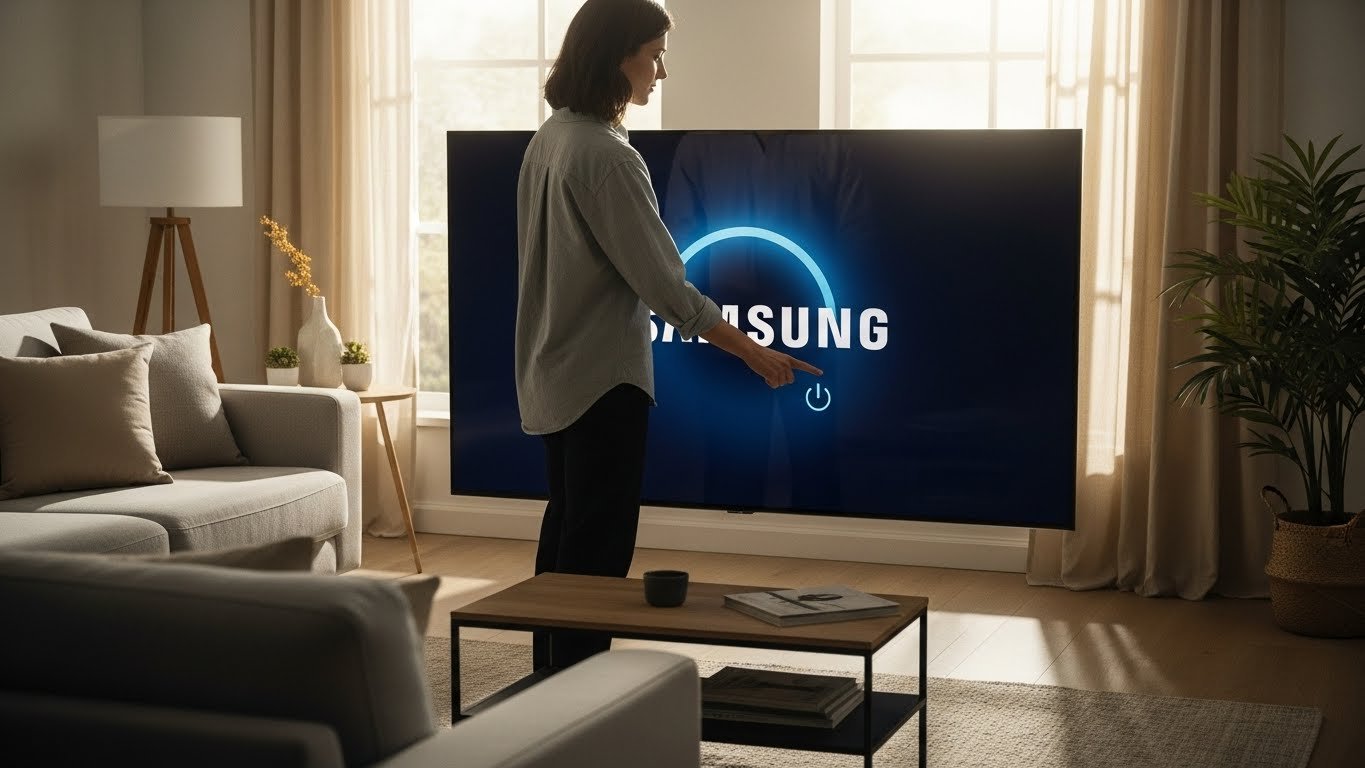
In today’s digital age, remotes have become essential for controlling various home appliances, including our beloved Samsung TVs. However, there are moments when the remote might go missing, stop working, or even get misplaced. Fortunately, Samsung TVs come with several ways to turn on the television without the need for a remote. Whether you’re looking for a quick fix or a more long-term solution, this guide will provide you with everything you need to know to turn on your Samsung TV without a remote.
Why Would You Need to Turn on Samsung TV Without a Remote?
Before we delve into the “how,” it’s important to understand the why. While remotes have become indispensable, they can sometimes be lost, broken, or misplaced. In such situations, it’s good to know that there are alternatives to getting your Samsung TV powered up and ready for action. In some cases, the remote might simply run out of battery, leaving you in need of an immediate solution. No matter the reason, having backup methods to turn on your TV can be incredibly helpful.
Methods to Turn on Samsung TV Without a Remote
1 Using the Power Button on the TV
The simplest and most direct way to turn on your Samsung TV without a remote is by using the physical power button on the TV itself. While many modern Samsung TVs are designed with a minimalist approach, most models still include a power button. Here’s how to do it:
Steps:
Locate the Power Button – The power button is typically hidden beneath the TV screen or on the side. For some models, it may be located near the bottom of the TV.
Press and Hold – Press and hold the button for a few seconds. In most cases, the TV will power on shortly after.
If you’re having trouble locating the button, try checking your TV’s user manual, which will provide specific details based on your model.
2 Using the Samsung SmartThings App
Samsung SmartThings is an app that allows you to control your Samsung TV from your smartphone or tablet. This method is especially useful if you frequently misplace your remote.
Steps:
Download the App – First, download and install the Samsung SmartThings app from your phone’s app store (available for both iOS and Android).
Connect to Your TV – Open the app and follow the prompts to connect it to your Samsung TV. Ensure that both your phone and TV are on the same Wi-Fi network.
Turn On Your TV – Once connected, you can use the app to control various features of your TV, including turning it on and off.
Why Choose This Method?
The SmartThings app provides more than just a power button. You can control the volume, change channels, and even access smart features on your TV. It’s a great replacement for a traditional remote.
3 Using a Universal Remote
If you’ve lost your Samsung remote or it’s no longer working, a universal remote is a great alternative. These remotes can be programmed to control a variety of devices, including your Samsung TV.
Steps:
Get a Universal Remote – Purchase a universal remote that is compatible with Samsung TVs. These are available in most electronics stores or online retailers.
Set Up the Universal Remote – Follow the instructions that come with the remote to sync it with your Samsung TV. This typically involves entering a code that corresponds to your TV model.
Power On Your TV – Once synced, use the universal remote to turn on your Samsung TV.
While universal remotes might not have all the features of your original remote, they are an excellent option for basic TV functions like turning the TV on and off.
4 Using HDMI-CEC to Control Your TV
HDMI-CEC (Consumer Electronics Control) is a feature that allows devices connected to your Samsung TV via HDMI (such as a gaming console, Blu-ray player, or streaming device) to control the TV, including turning it on.
Steps:
Enable HDMI-CEC – First, ensure that HDMI-CEC is enabled on your TV. To do this, navigate to Settings > General > External Device Manager > Anynet+ (HDMI-CEC) and turn it on.
Turn on a Connected Device – Once enabled, simply turn on a device connected to the TV via HDMI, and your Samsung TV should power on automatically.
This method works particularly well if you regularly use devices such as gaming consoles, set-top boxes, or streaming devices, as they can act as a remote control for your TV.
5 Turning on Samsung TV with Voice Control (Bixby or Alexa)
Many Samsung TVs come with built-in voice assistants like Bixby (Samsung’s own assistant) or are compatible with Amazon Alexa or Google Assistant. If you have a smart speaker or a voice-activated device, you can use it to turn on your Samsung TV.
Steps for Bixby:
Activate Bixby – If your TV has Bixby, say “Hi Bixby” followed by a command like, “Turn on the TV.”
Voice Command – Alternatively, you can press the Bixby button on your remote (if available) and give the command.
Steps for Alexa:
Link Alexa with Your TV – To use Alexa, ensure your Samsung TV is linked to an Amazon Alexa device.
Voice Command – Once connected, simply say, “Alexa, turn on the TV.”
This method is incredibly convenient if you already use voice assistants in your home for other smart devices.
Troubleshooting Tips for Powering On Your Samsung TV Without a Remote
While the methods above should work for most people, sometimes issues can arise. Here are a few troubleshooting tips to help:
Check TV Power: If your TV doesn’t turn on using the power button or app, ensure it’s plugged in and that the power outlet is working. Try using another device to confirm the outlet is functional.
Reboot Your TV: If the TV doesn’t respond to your commands, try unplugging it for 30 seconds and then plugging it back in. This can often resolve any minor software glitches.
Software Update: Ensure your TV’s software is up to date. Sometimes, issues with remote functionality can be fixed with a simple update.
Factory Reset: As a last resort, you may want to consider performing a factory reset, which will restore the TV to its default settings. This can be done through the TV’s settings menu.
Conclusion: Easy Alternatives for Turning on Your Samsung TV
As we’ve explored in this article, there are many ways to turn on your Samsung TV without a remote, ranging from using the physical power button on the TV itself to taking advantage of smartphone apps, voice control, and HDMI-CEC. These alternatives ensure that you’re never left stranded without control over your TV, even if your remote is out of commission.
If you regularly find yourself in need of a backup solution, the Samsung SmartThings app and universal remotes are especially helpful. However, it’s important to remember that voice control via Bixby or Alexa can also be a highly convenient method.
